Before version 1.2, in “MICHIRU browser”, the dedicated web browser for MICHIRU RPA, you can operate web pages by specifying positions using HTML elements.
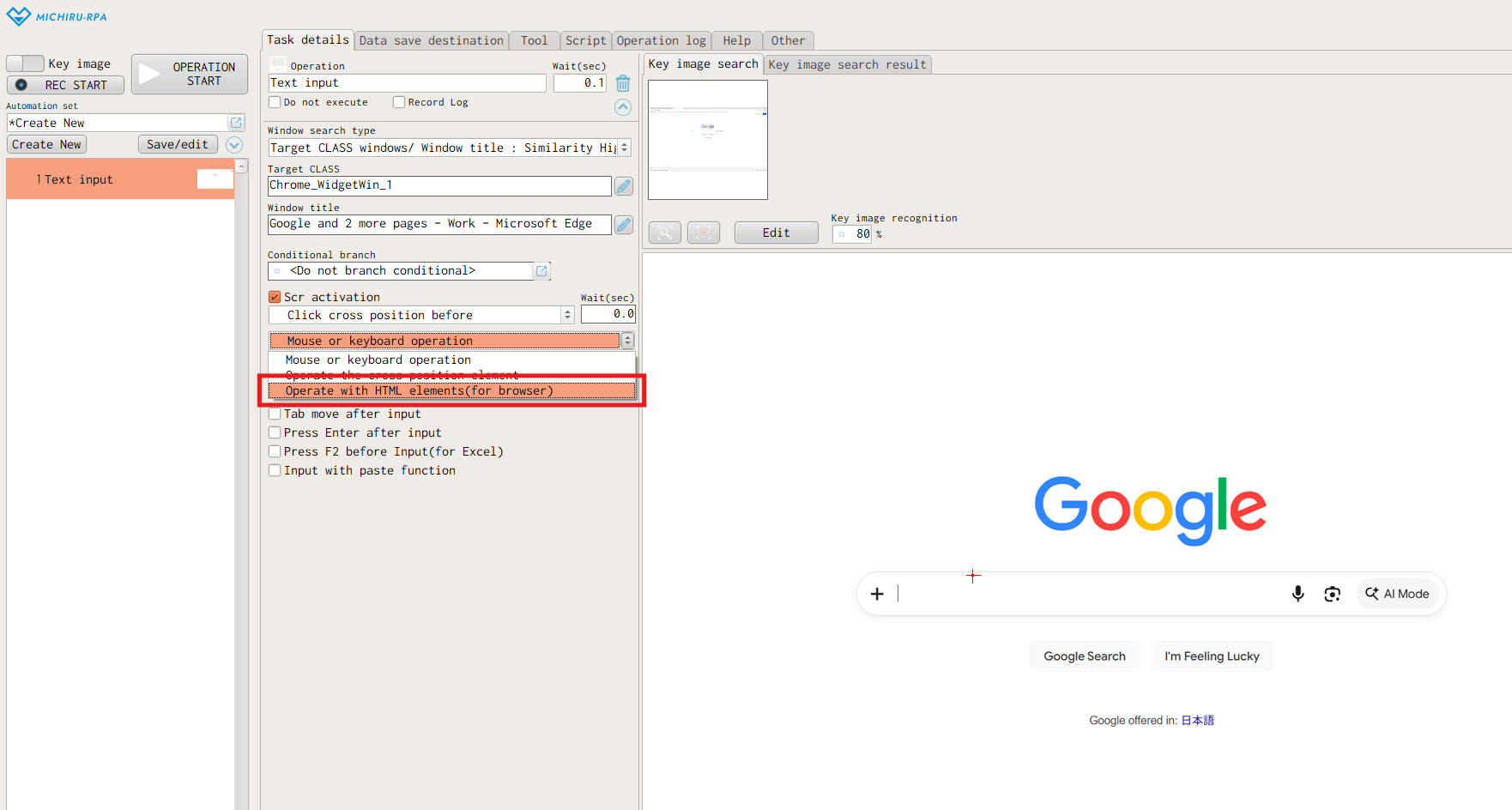
After version 1.4, You can use the same method of specifying HTML elements on other common browsers, such as Google Chrome and Microsoft Edge as well.
What Is HTML Elements?
Websites are built using a language called HTML.
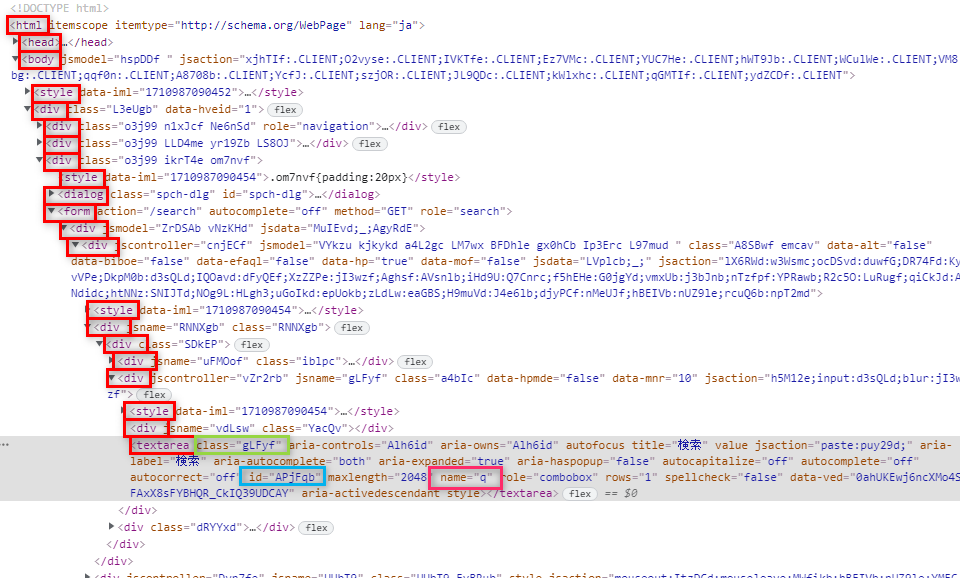
The image below shows the HTML of a website as displayed in Google Chrome’s Developers Tools.
Elements enclosed in angle brackets, such as <body> and <div>, are referred to as tags.
A sequence of tags linked by slashes, such as “/html/body/div[1]/div[3]/form/div[1]/div[1]/div[1]/div/div[2]/textarea”, is called an XPath.
An XPath works like an address used to identify a specific element.
Tags also contain information such as ID and CLASS, which can be used to identify elements.
Details are shown in the table below.
These can be used to specify the position of the operation when operating in MICHIRU browser (or other browsers from version 1.4).
| Xpath | A sequence of tags linked by slashes, working like an address used to identify a specific element. Number enclosed in brackets (“[ ]”) appear when there are multiple tags at the same level and indicate which occurrence of the element it is. Example: /html/body/div[1]/div[3]/form/div[1]/div[1]/div[1]/div/div[2]/textarea |
|---|---|
| ID | A unique identifier for the tag. In principle, no two IDs with the same name exist on a single page. Example: APjFqb (blue box in the image above) |
| Name | A name freely assigned to an element. Example: q (pink box in the image above) |
| ClassName | Mainly used for style settings. In many cases, multiple elements on a page share the same CLASS name。 Example: gLFyf(green box in the image above) |
| TagName | Tags enclosed in angle brackets (“<>”). Example: <div>、<textarea> (red box in the image above) |
Working with XPath in MICHIRU browser
MICHIRU browser’s UI
Home Screen
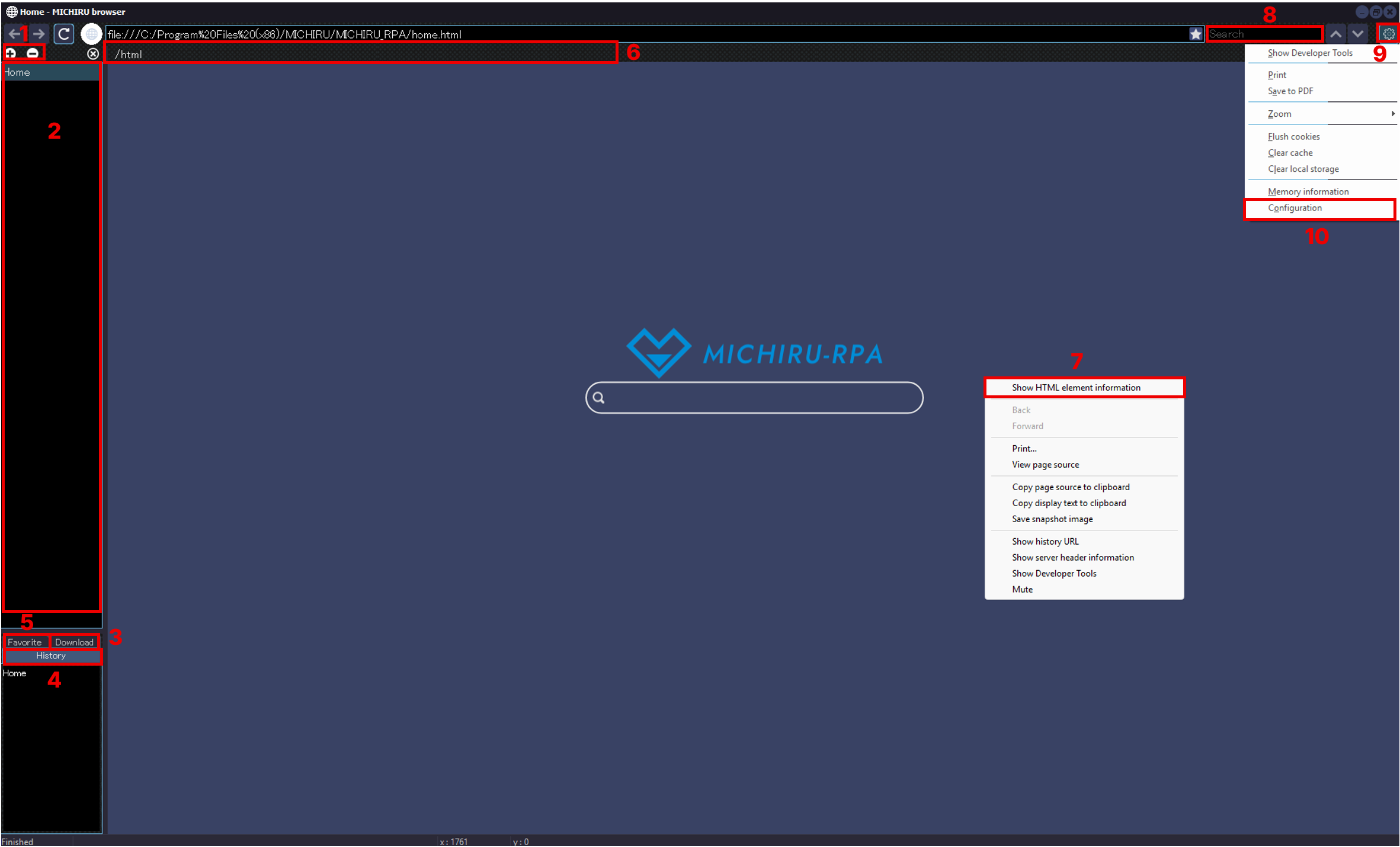
Inside the “Tool” > “MICHIRU browser” tab inside MICHIRU RPA, click the “Launch MICHIRU browser”, or use “Open MICHIRU browser” operation to launch MICHIRU browser as shown in the image below.
| No. | Name | Explanation |
|---|---|---|
| 1 | Page Add/Delete Buttons | Use the + button to add a page, and the – button to close a page. |
| 2 | Page List | Click to switch between a pages. |
| 3 | Download List | Display a list of downloaded files. |
| 4 | History List | Double-click to navigate. |
| 5 | Favorite List | Display your list of favorites. |
| 6 | Xpath Display Bar | Shows the Xpath of the element under the mouse cursor. |
| 7 | HTML Elements | Right-click and select “Show HTML element information” to display details such as XPath, ID, Name, ClassName, TagName and more. |
| 8 | Search Box | Search within the page. |
| 9 | Menu (Settings Menu) | Display menus for printing, settings, and other options. |
| 10 | Configuration | Open the preferences screen. |
Checking HTML Element
The image below shows what appears when you open Google’s top page in the MICHIRU browser and right-click on the input field.
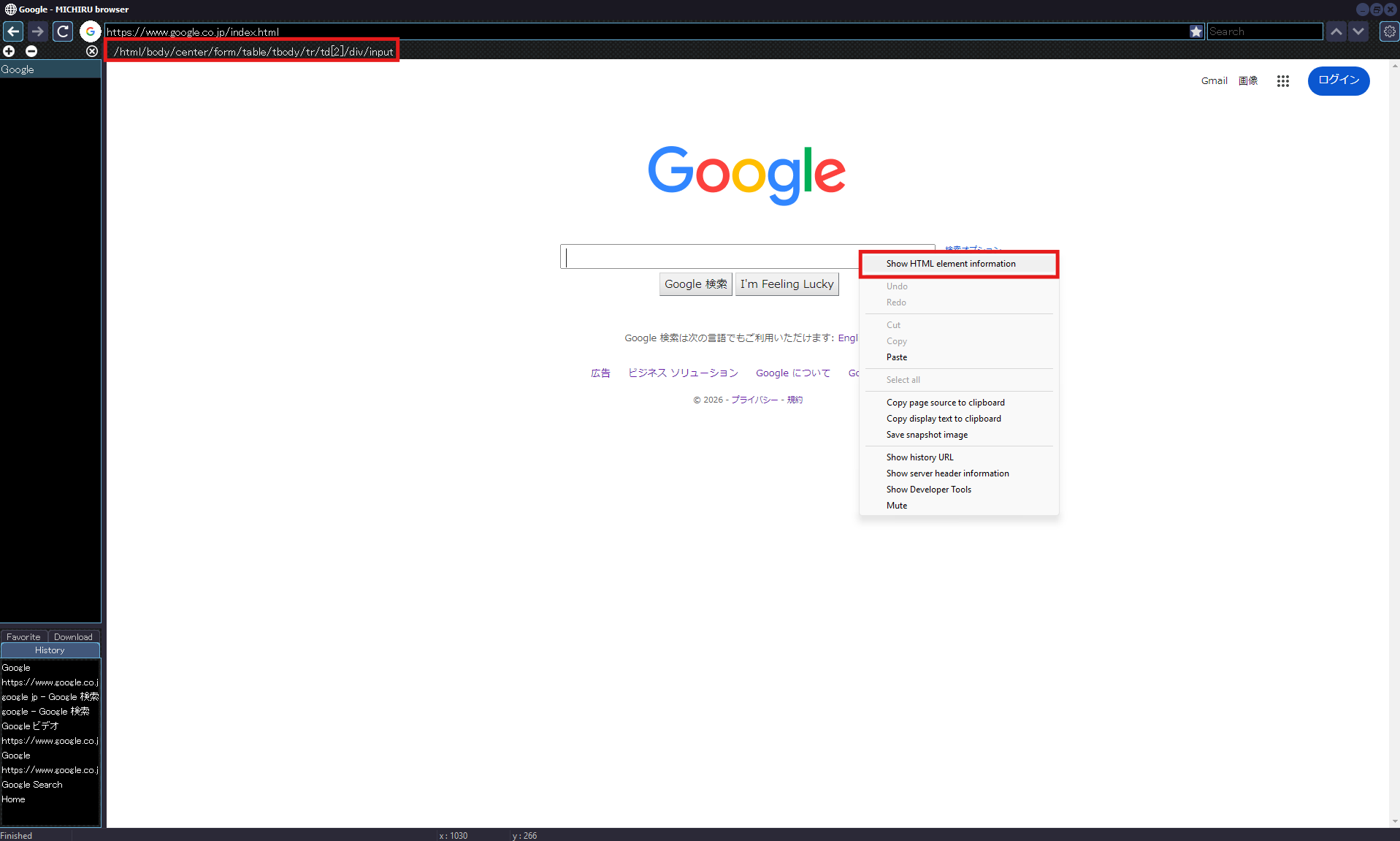
- The XPath of the element under the cursor is displayed.
- Click “Show HTML element information” shown in the menu to display the datailed information of the element.
Details for each item are shown in the table below.
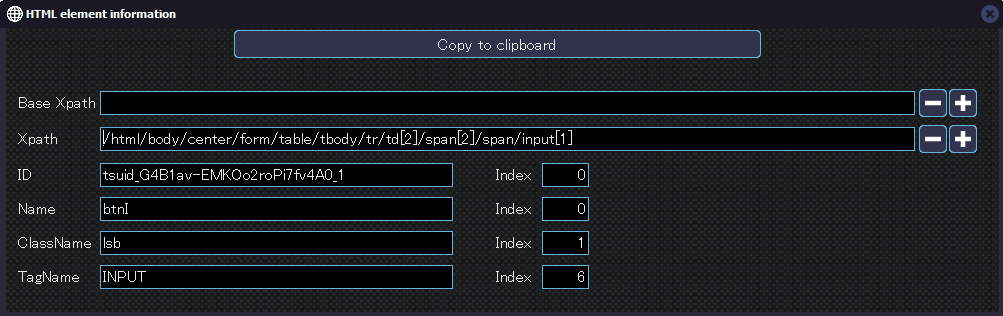
| Copy to Clipboard | Element information displayed can be copied and used to configure the settings of an operation. The copied information will be applied when clicking on “Reflect element info”. |
|---|---|
| Base Xpath | The + button on the right adds elements from the Xpath one at a time, while the – button returns elements back into the Xpath one by one. Operations are performed on the content inside the tag set as the base Xpath. |
| Xpath | The Xpath of the element of the cursor position is displayed. The – button moves elements into the base XPath one at a time, while the + button returns elements from the base Xpath.” |
| ID | The ID of the element of the cursor position is displayed. If no ID is set, nothing will be shown. In principle, IDs are generally unique within a page, when duplicates exist, they can be identified by an index number. |
| Name | The Name of the element of the cursor position is displayed. If no Name is set, nothing will be shown. If multiple elements share the same Name, they can be distinguished using an index number. |
| ClassName | The ClassName of the element of the cursor position is displayed. If no ClassName is set, nothing will be shown. If multiple elements share the same ClassName, they can be distinguished using an index number. |
| TagName | The TagName of the element of the cursor position is displayed. If multiple tags of the same type exist at the same hierarchy level, they can be identified by an index number. |
Detailed Configuration When Using MICHIRU browser
Getting HTML Element
- Selecting operation after getting HTML element
-
Move the cursor to the intended position of operation, press the image capture shortcut key on your keyboard (Shift key by default) to capture the HTML elements.
At this time, the operation will be automatically selected based on the retrieved element. If the selected operation is not what you intended, please choose the correct one from the operation menu. - Capturing HTML elements after selecting an operation (including when changing the operation position)
-
Move the cursor to the intended position of operation on the website, right-click and select “Show HTML element information”.
After adjusting the base Xpath, click on “Copy to clipboard” button and return to MICHIRU RPA.
On the configuration section of the operation, click on “Reflect element info” button to import the HTML element.
If key image is set, make adjustment to the key image according to the change as well.
Specifying the position of operation.
After getting the HTML, you will select the HTML element that is going to be used for the operaton.
The data can be stored in the data save destination to used as variables.
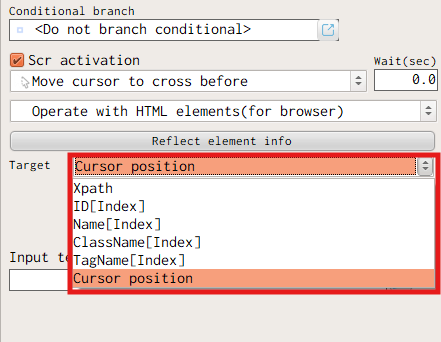
| Xpath | Select when specifying the position of operation with XPath. |
|---|---|
| ID[Index] | Select when specifying the position of operation with ID. |
| Name[Index] | Select when specifying the position of operation with Name. |
| ClassName[Index] | Select when specifying the position of operation with ClassName. |
| TagName[Index] | Select when specifying the position of operation with TagName. |
| Cursor position | Select when specifying the position of operation with cursor position. Configuration of key image and position of operation is required. |
Configuring key image.
When you use the image capture shortcut key to obtain an HTML element, a key image is captured at the same time. In this case, the position of operation is determined be searching for the key image first, and then by the HTML element after the key image is found.
Right after obtaining an HTML element, the entire screen may be set as the key image, which an cause errors during execution. Please be careful.
Click on the “Edit” button above the image to configure the key image.
When specify using XPath, ID[Index], Name[Index], ClassName[Index], or TagName, the operaton can be executed even if the key image is removed. However, thumbnail iamge will not be displayed in the operation list.
Please be aware that this may make it more difficult to identify the position of operation when making corrections.
Using XPath On Other Browsers (Google Chrome and Microsoft Edge)
Using XPath on other browsers is supported on MICHIRU RPA starting from version 1.4.
After capturing an image or an element, you will be able to select “Operate with HTML elements (for browser) from the drop-down menu.
Configuration for the “Target” field, “Base XPath” and “XPath” field works the same way as when working with MICHIRU browser.