- Updating MICHIRU RPA to the Latest Version
-
MICHIRU RPA is continuously improving existing features and adding new ones.
Please update to the latest version as soon as a new release becomes available.Release information for new versions is sent by email and can also be checked on RPA Station.
Please download the latest installer from RPA Station and update MICHIRU RPA on every PC where it is installed.
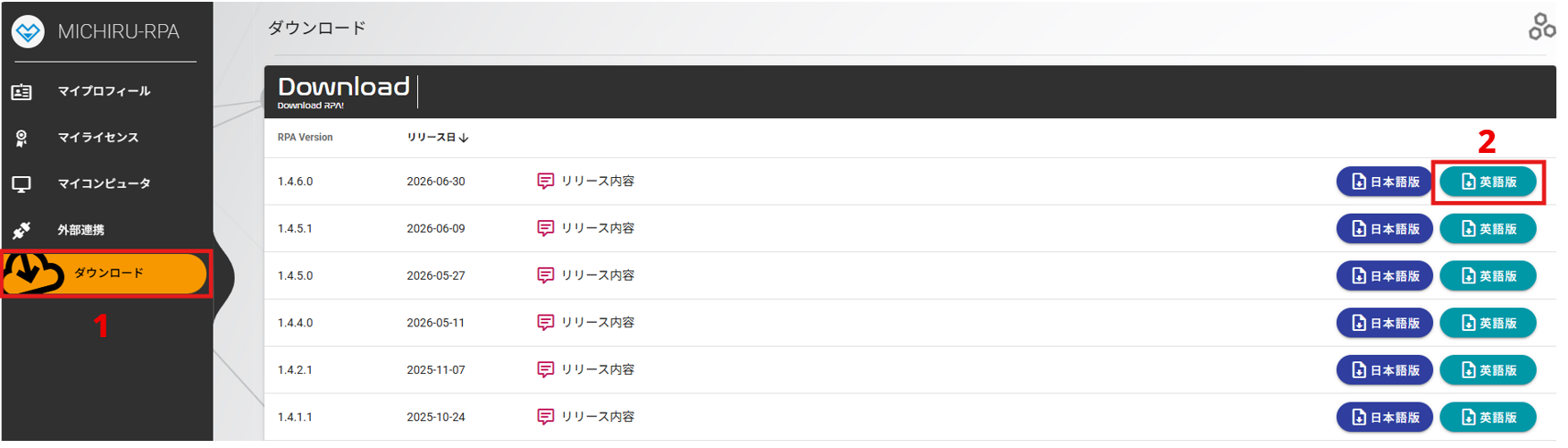
▼ Steps to Downloading Installer from RPA Station (Currently only available in Japanese).

- Log in to the “RPA Station” (rpa-station), and click on the “ダウンロード (Download)” button on the left sidebar.
- Click “英語版 (English)” of the latest version, which is the button on the top-right in blueish green color.
- Backing Up Automation Set
-
MICHIRU RPA does not have an automatic backup features.
Please back up your automation sets regularly to prevent data loss in case of unexected situations.You can create a backup file by going to the “Other” tab in MICHIRU RPA, then, select “Export”. Please store the generated file, which has the “.mzip” extension, in a secure location, such as external storage or network drive, rather than on the PC where MICHIRU RPA is installed.
**Note: The file is encrypted and compressed, and its contents cannot be viewed even if extracted.
- Using MICHIRU RPA in a Multi-Monitor Environment
-
MICHIRU RPA works with multiple monitor environments, however, we recommend performing the operations on the main monitor.
If you need to operate on a secondary monitor, please make sure that the display scaling matches the main monitor.
- Transferring Automation Set
-
To use an automation set you created on another computer, please go to the “Other” tab in MICHIRU RPA, then, select “Export”. After transferring the exported file to the new computer, select “Import” in the “Other” tab in MICHIRU RPA to import the automation set to the new environment.
**If the resolution and the scaling of the display is different on your new computer, you will need to reconfigure the key image to make the automation set work.
- When the Configured Key Image is Altered Unexpectedly
-
By default, the feature that automatically reconfigures the key image when it cannot be found is enabled.
If the key image you set keeps shifting, please go to the “Other” tab in MICHIRU RPA, then uncheck the “Automatically reset if the key image is not found” option in the “Basic function” section of the settings. - Changing the Screen Style (Color) of MICHIRU RPA
-
Please select the screen style of your choice from the “Screen style” drop-down menu inside the “Other” tab inside MICHIRU RPA.