
You can schedule the execution of RPA automation set, with date & time and weekdays specified, using “Task Scheduler” which is available in Windows by default.
You can also use the “MICHIRU Assistant” trigger feature, available in MICHIRU RPA Ver. 1.4.4.0 and later, to run the process at a specified date and time. For details, please refer here.
Here are the steps to setting it up.
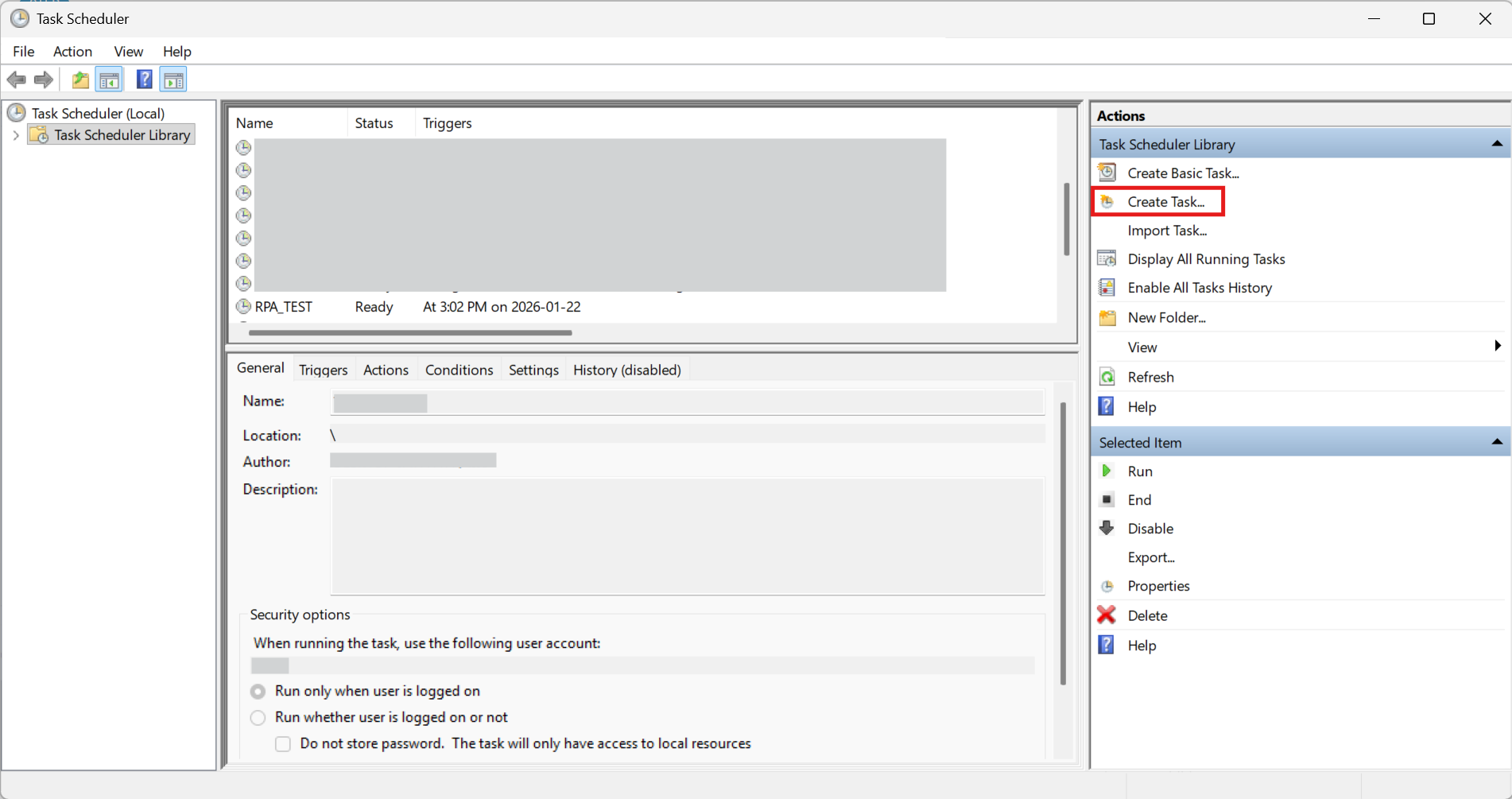
Lauch Task Scheduler, which is available be searching in the Windows menu, then click the “Create Task…” option on the right sidebar.
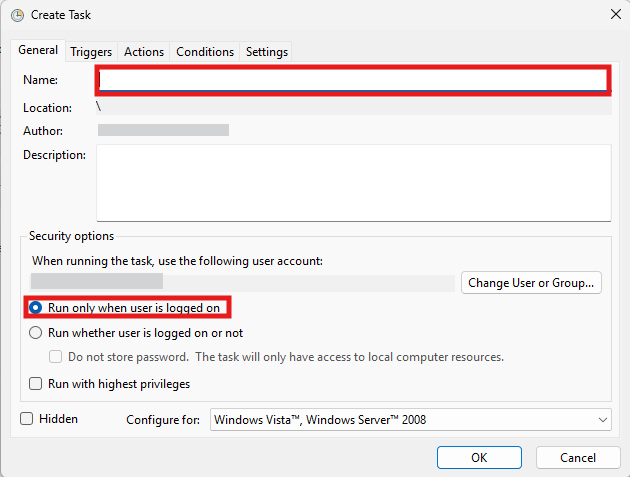
Enter the name of your choice in the “Name” field inside the “General” tab.
Check “Run only when user is logged on” in the “Security options”.
Click the “New…” button at the bottom-left of the “Triggers” tab to create a new trigger.
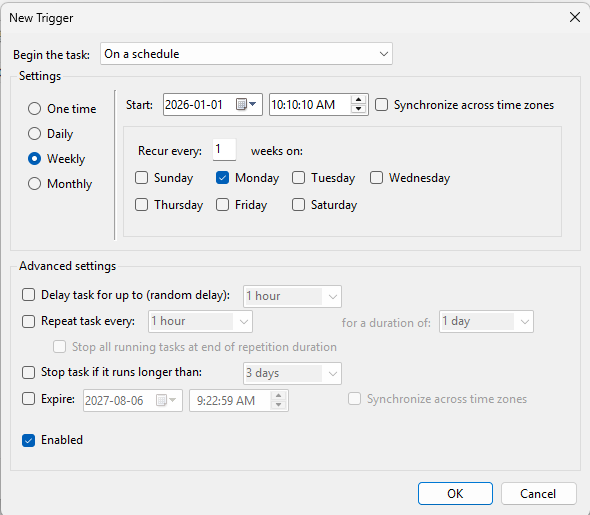
Configure the timing of the execution in the “Settings” section. More detailed settings can be configured in the “Advanced settings” section.
Below is the example of the setting when you want the automation set to be executed every Monday at 10:00.
Click the “New…” button at the bottom-left of the “Triggers” tab to create a new action.
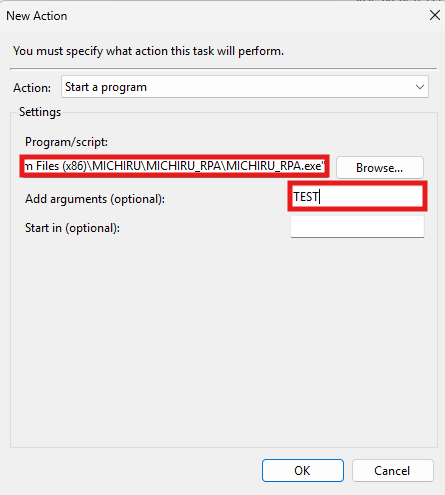
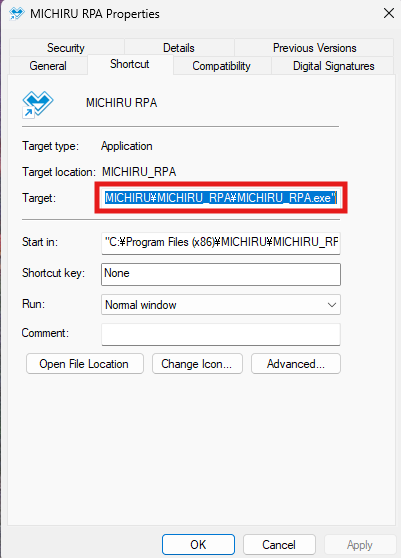
In the “Program/script” field, specify the file path to “MICHIRU_RPA.exe”.
If you don’t know the file path to “MICHIRU_RPA.exe”, try right-clicking on the MICHIRU RPA icon (shortcut) on your desktop, and select “Properties”. In the new window that appears, copy the file path inside the “Target” field.
In the “Add arguments (optional)” field, enter the name of the automation set you would like to execute.
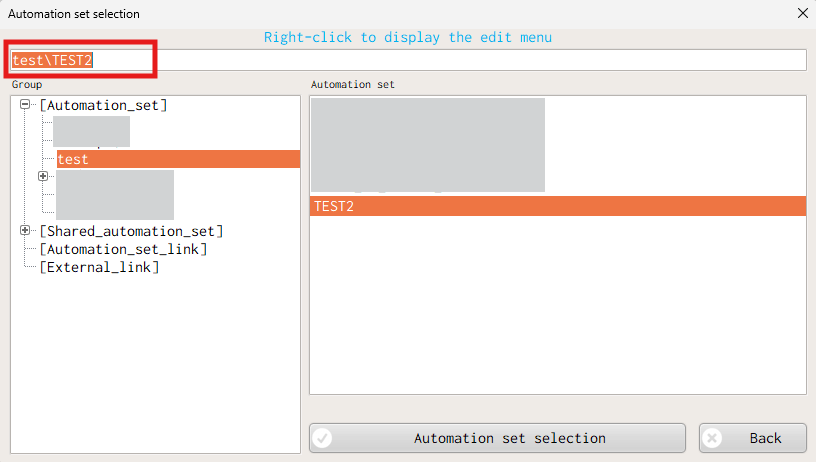
When specifying an automation set that is located inside a subfolder or shared folder, enter the path to the automation set as well.
In the “Automation set selection” window accessible by clicking on “Save/edit” button in MICHIRU RPA, start by selecting the automation set first, then click the long field at the top to get the automation set name with the file path included.
For the “Conditions” and “Settings” tab in Task Scheduler, please configure as needed.
After the configuration is done, click “OK” button to confirm and close the window.
The setup for scheduled execution using Task Scheduler is now finished. Please note that the execution might fail if the screen is locked or the screensaver is on, therefore, it is advisable to turn these settings off when using RPA,