
Have you ever wanted to repeatedly collect values during a loop (repeat a series of operations) and use them all together afterward?
For example, you might want to:
- Check an Excel file row by row and display the row numbers with missing values
- Process multiple files and send a notification listing the files that encountered errors
- Process orders one by one and review only the orders that were processed successfully
In these situations, you can add (append) each new value to a single data destination (variable) without losing the values already collected.
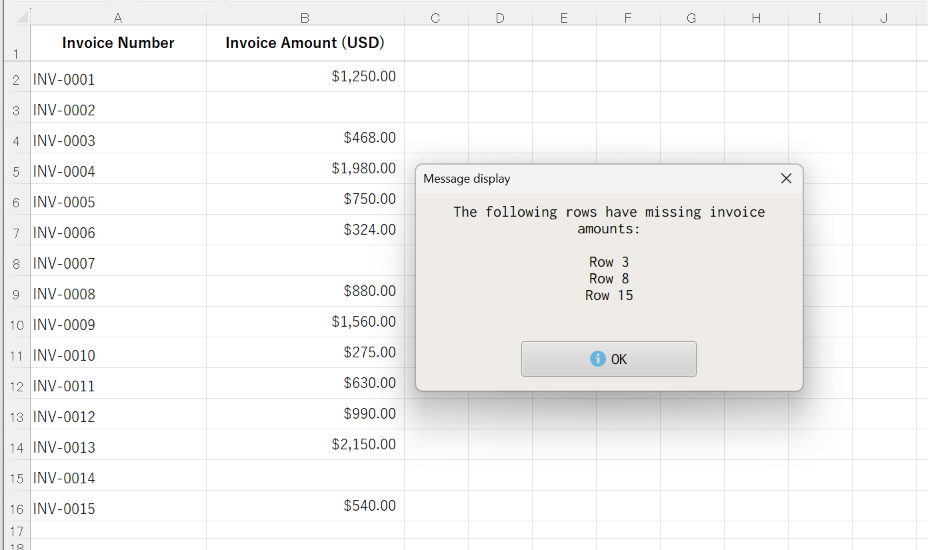
In this tip, we’ll show you how to collect the row numbers where invoice amounts are blank in an Excel invoice list and display them together in a single message.
Preparation
Prepare an Excel Workbook (Invoice List)
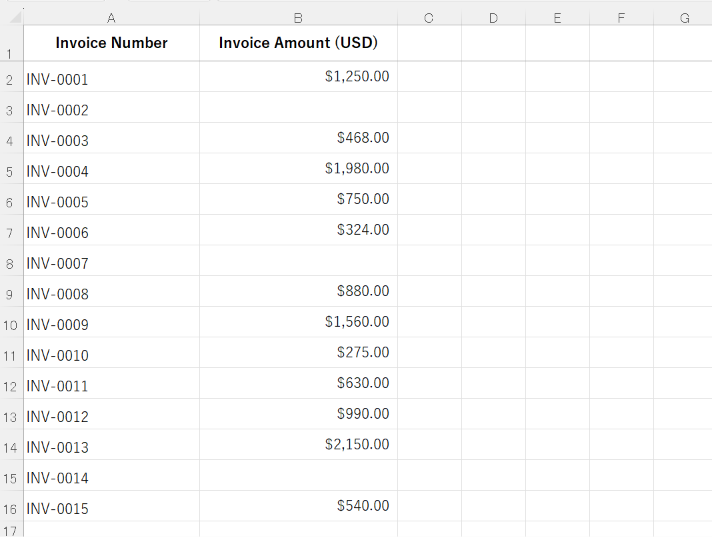
Prepare an Excel workbook containing a list of invoices with some invoice amounts left blank, as shown below. Save it in a location of your choice.
You can download the sample Excel file here.
invoice_amount_check_en.xlsx (10KB)
Create an Automation Set to Retrieve Cell Values in a Loop
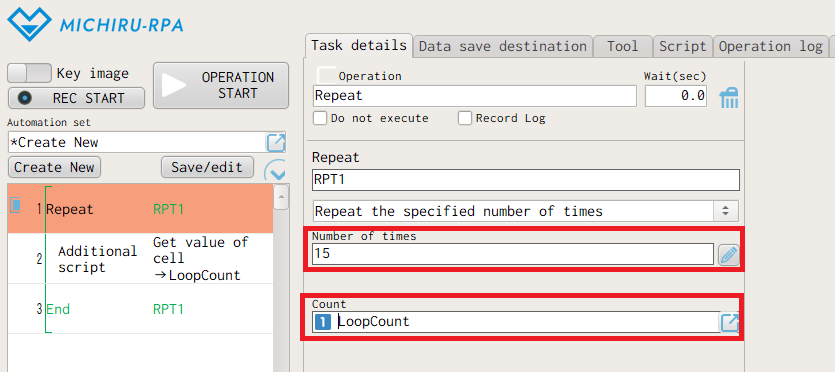
Add the “Get value of cell” script inside a “Repeat” operation to retrieve invoice amounts from all 15 data rows, one row at a time.
To try this quickly, download the sample automation set and import it into MICHIRU RPA.
Sample automation set: CheckforMissingInvoiceAmounts (4.3 KB / Ver. 1.4.6.0 or later)
※ The sample is intended for MICHIRU RPA Ver.1.4.6.0 or later. Earlier versions are not supported.
※ For instructions on importing an automation set, see this related tip (Japanese). (“Import” button can be found inside the “Other” tab of MICHIRU RPA. Please directly select the .mzip file you after extracting the downloaded .zip file.)
※ You can also follow the configuration steps below without downloading the sample.
- Create the following three data save destinations.
- LoopCount (Data type: Number)
- RetrievedData (Data type: Text)
- MissingRows (Data type: Text)
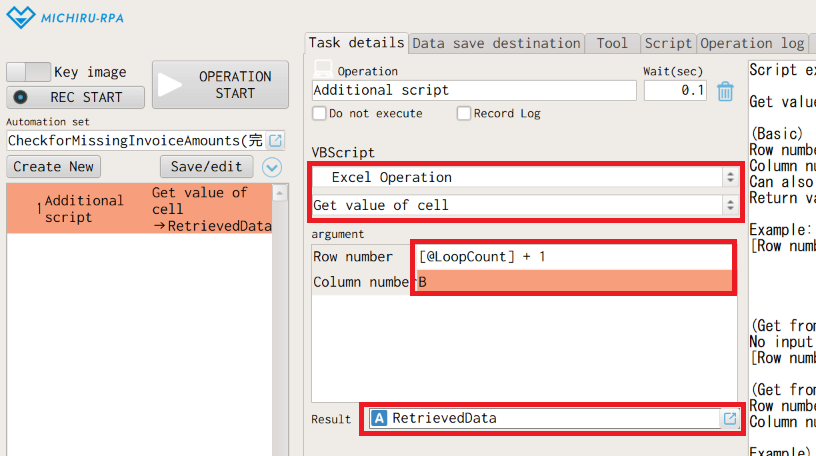
- From “Function / Script”, select “Additional script”. Under “Excel Operation”, select “Get value of cell” and configure it as follows.
- Row number:
[@LoopCount] + 1 - Column number:
B - Result: data save destination “RetrievedData”

- Row number:
- From “Execution order Control”, add “Repeat” around the “Get value of cell” operation configured in step 2. Configure it as follows.
- Number of times:
15 - Count: data save destination “LoopCount”
- Number of times:
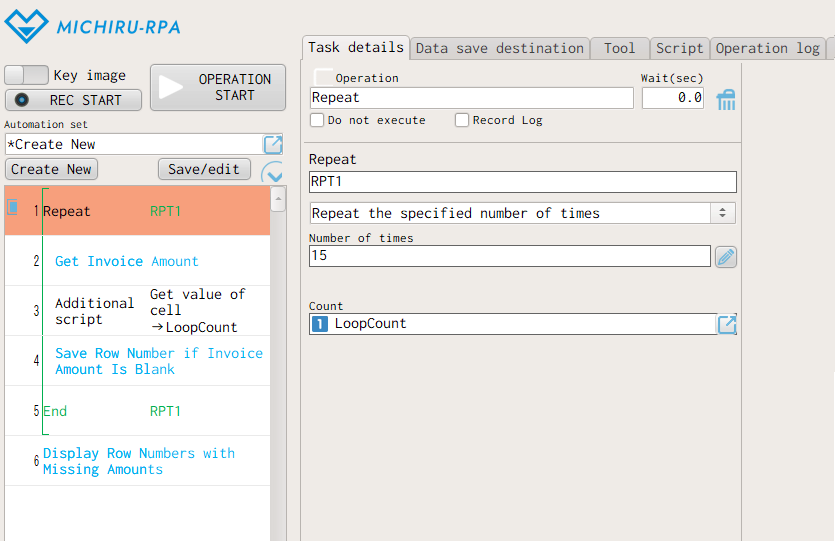
- Add “Comment” operations as shown below.
- No. 2:
Get Invoice Amount - No. 4:
Save Row Number if Invoice Amount Is Blank - No. 6:
Display Row Numbers with Missing Amounts
- No. 2:
How to Configure
Next, configure the automation set to add a row number to “MissingRows” data save destination only when the corresponding invoice amount is blank.
- Immediately before operation No. 1, “Repeat”, add “Save Data” operation from “Function / Script” category and configure it as follows.
- Saved:
""or leave blank - Result: data save destination “MissingRows”
- Saved:
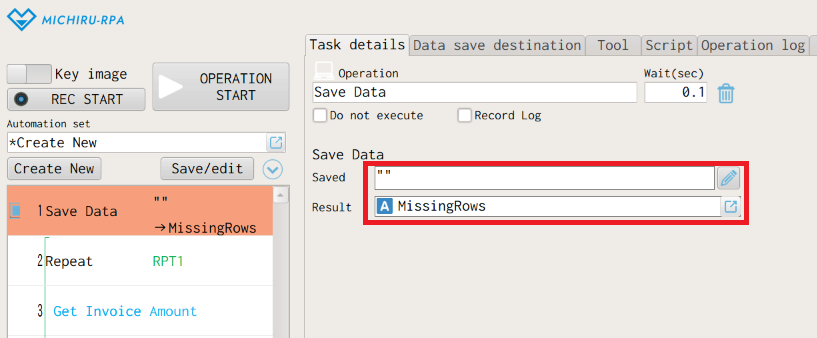
Saving an empty value clears any previously stored data in “MissingRows”. Without this process, old values may be mixed with the new results. Clearing “MissingRows” before the loop allows each full run to start with an empty destination and helps ensure consistent results.
- Immediately after operation No. 5, “Comment”, add another “Save Data” operation from “Function / Script”. Configure it as follows.
- Saved:
[@MissingRows]
"Row " & [@LoopCount] + 1 - Result: data save destination “MissingRows”
- Saved:
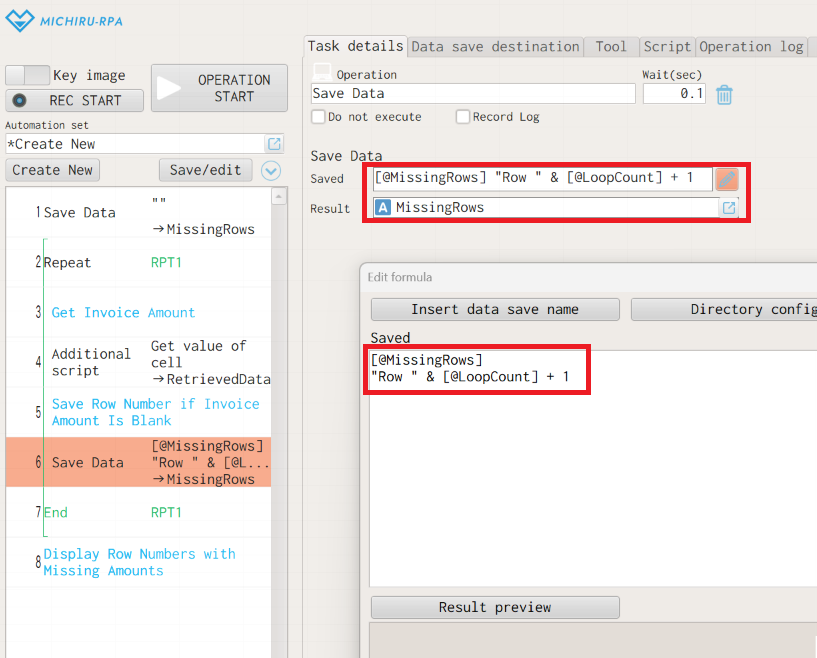
Combine A) the previously collected values and B) the current row number, separated by a line break, then save the result back to A. This appends the new row number while preserving the values already collected.
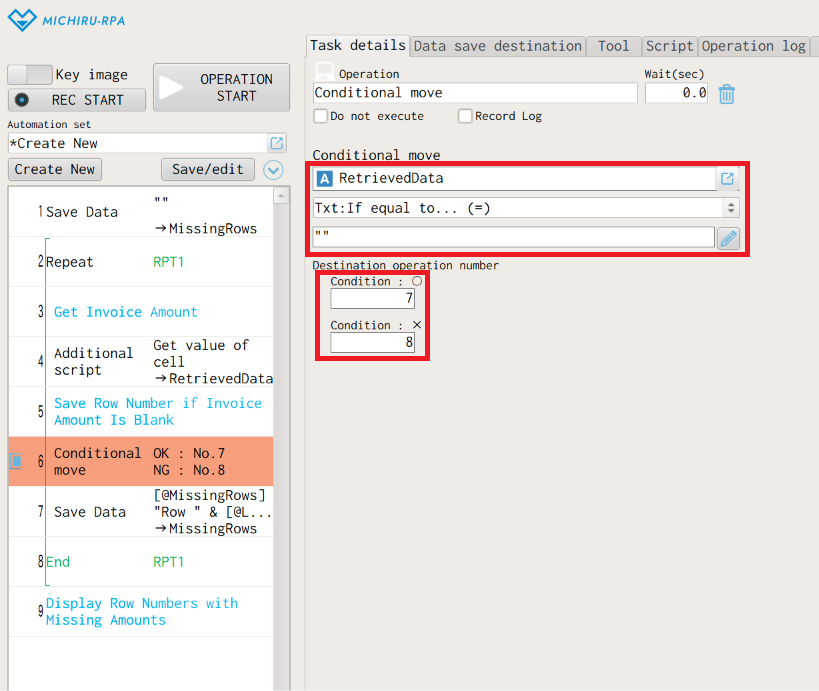
- Immediately after operation No. 5, “Comment”, add “Conditional move” operation from “Execution order Control” category. Configure it as follows.
- Data to check: data save destination “RetrievedData”
- Condition type: Txt:If equal to… (=)
- Condition value:
""or leave blank - Destination operation number — Condition: ○
7 - Destination operation number — Condition: ×
8
This adds a row number to “MissingRows” only when the invoice amount is blank.
- Immediately after operation No. 9, “Comment”, add “Message display” operation from “Notification” category. Enter the following text in the “Message display” field.
- Message:
The following rows have missing invoice amounts:
[@MissingRows]
- Message:
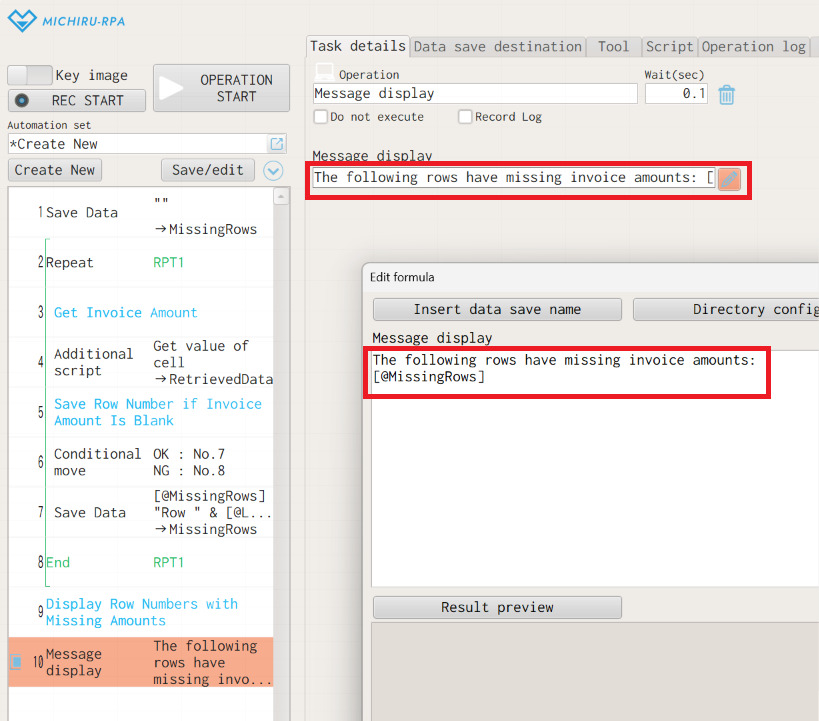
With the Excel invoice workbook active, run the automation set from the beginning. It will collect only the row numbers with blank invoice amounts in “MissingRows” and display them together at the end.
Additional Notes
- When resuming a loop partway through, be careful not to run operation No. 1, “Save Data”, to avoid clearing the data already collected.
- When the first missing invoice amount is found, a leading line break is added because “MissingRows” starts empty. If you do not need that leading line break in a subsequent operation, use “Remove blanks at both ends of string” script in the “Additional script” operation after the loop to remove leading and trailing whitespace, including line breaks and tabs. Line breaks between collected values are preserved. Be careful if the leading or trailing whitespace is meaningful.
- In this article, we introduced how to enter line breaks directly in the “Saved” field in step ② and the “Message display” field in step ④. When combining strings in the “Saved” field, you can also use the line break code
vbCrLfor insert a line break inside double quotation marks.
For example, you can also write the value in the “Saved” field in step ② as follows:[@MissingRows] & vbCrLf & "Row " & [@LoopCount] + 1[@MissingRows] & "
" & "Row " & [@LoopCount] + 1 - If no invoice amounts are missing, “MissingRows” remains empty. You can add a conditional operation to skip the message or display an alternative message in that case.
- You can also use the collected line-break-separated values in a subsequent “List repeat” operation to repeat the process for each element stored in the data destination. For more information about repeat operations, see Specifying and Configuring Repeat.
Specifying and Configuring Repeat
Summary
By appending newly collected data to the values already stored during a loop, you can combine multiple results in a single data destination without losing previous values.
The collected data can be used to find missing entries, send error notifications, or report processing results.
Try this method in your daily automation tasks.