
There are many methods to retrieve a date in MICHIRU RPA. By using the following formula in “Date acquisition” operation, you can get a specific date such as today, yesterday, and the last date of the month. The following are examples of what you can get
| Get the date of today | Date |
|---|---|
| Get the current date and time | Now |
| Get the current time | Time |
| Add to or subtract from date | Calculate with date to get the date you want. DateAdd (unit to add/subtract, value to add/subtract, base date) |
| Get weekday | WeekdayName |
Please don’t forget to create data save destination to store the retrieved date and time data.
Getting date and time of the current day
Input “Date” to get the date of today, and “Now” to get the current date and time.
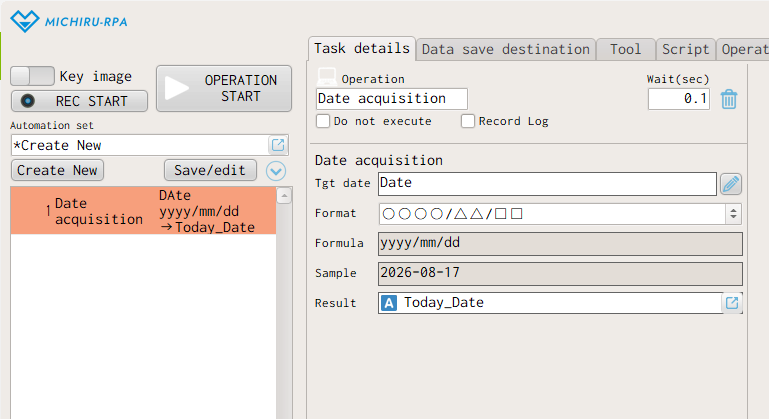
- Today’s date
-

- Select “Function / Script” > “Date acquisition” from the the operation menu.
- Input “Date” in the “Tgt date” field.
- Select the date format you would like to use from the “Format” drop-down menu.
- Select the data destination to store the data by clicking the button at the end of the “Result” field.
The retrieved data will be stored in the “Today_Date” data save destination after the execution.
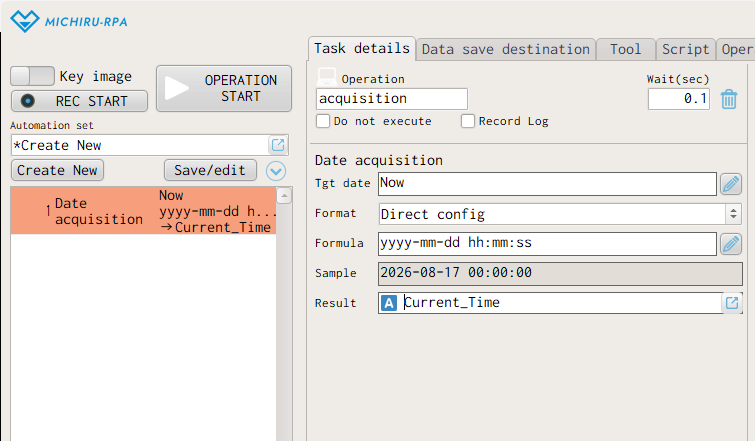
- Current date and time
-
- Select “Function / Script” > “Date acquisition” from the the operation menu.
- Input “Now” in the “Tgt date” field.
- Select “Direct config” from the “Format” drop-down menu.
- Input “yyyy-mm-dd hh:mm:ss” in the “Formula” field.
- Select the data destination to store the data by clicking the button at the end of the “Result” field.
The retrieved data will be stored in the “Current_Time” data save destination after the execution.
Getting date and time of the day before/after
You can do calculation with formula to get the date the you want. One of the simplest ways is to use “Date ± the days you want to add/subtract”. Another way is to use “DateAdd(unit to add/subtract, value to add/subtract, base date)” formula for more customized result.
For the “Date” method, the calculation will be made with today as the base date. If today is the 10th of a month, “+1” will result in the “11” for the day, while “-2” will return “8”.
With the “DateAdd” method, you can perform more varied calculation to get the result in the unit of your choice. Set the parameters in parentheses as follows.
| Unit to add/subtract | When adding/subtracting year: “yyyy” When adding/subtracting month: “m” When adding/subtracting day: “d” |
|---|---|
| Value to add/subtract | “-” to get a point of time before, “+” to get a point of time after the base date. |
| Base date | Specify the base date to use for the calculation. When using today’s date for calculation: “Date” When using a specific date for calculation: “2024/01/01” |
Here are the examples of DateAdd Usage.
| 3 years after today | DateAdd(“yyyy”,3 ,Date) |
|---|---|
| 4 months before today | DateAdd(“m”,-4,Date) |
| 30 days after 15 January 2024 | DateAdd(“d”,30,”2024/01/15″) |
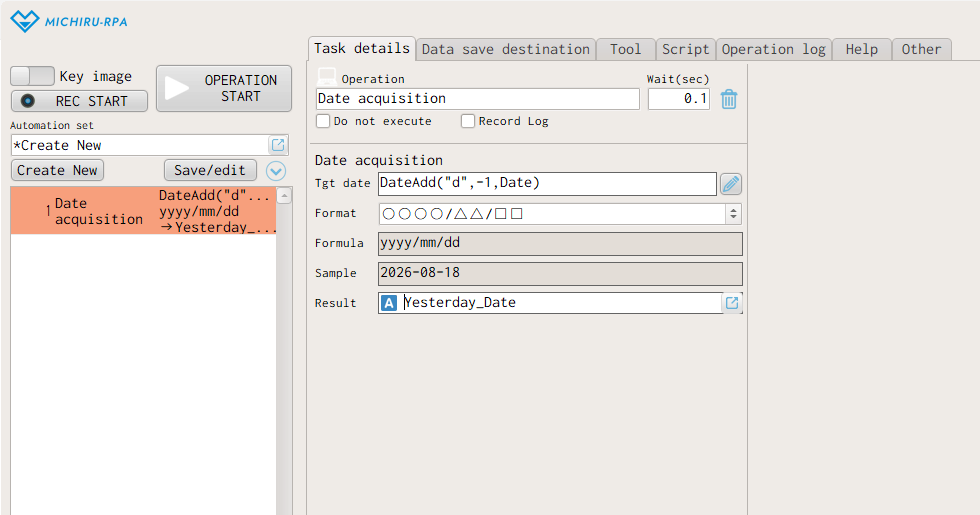
- Yesterday’s date
-
- Select “Function / Script” > “Date acquisition” from the the operation menu.
- Input “DateAdd(“d”,-1,Date)” in the “Tgt date” field.
- Select the date format you would like to use from the “Format” drop-down menu.
- Select the data destination to store the data by clicking the button at the end of the “Result” field.
The retrieved data will be stored in the “Yesterday_Date” data save destination after the execution.
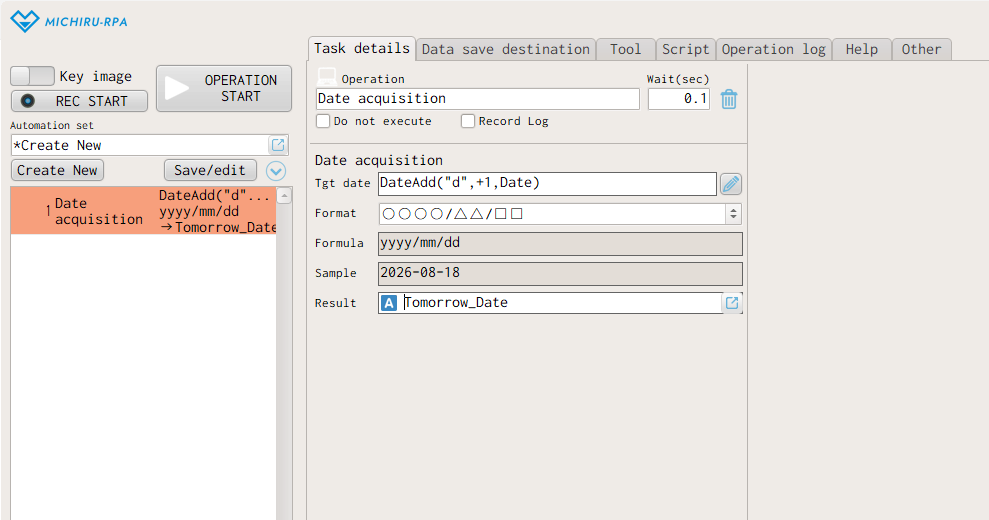
- Tomorrow’s date
-
- Select “Function / Script” > “Date acquisition” from the the operation menu.
- Input “Date + 1” in the “Tgt date” field.
- Select the date format you would like to use from the “Format” drop-down menu.
- Select the data destination to store the data by clicking the button at the end of the “Result” field.
The retrieved data will be stored in the “Tomorrow_Date” data save destination after the execution.
Getting the first day of a month
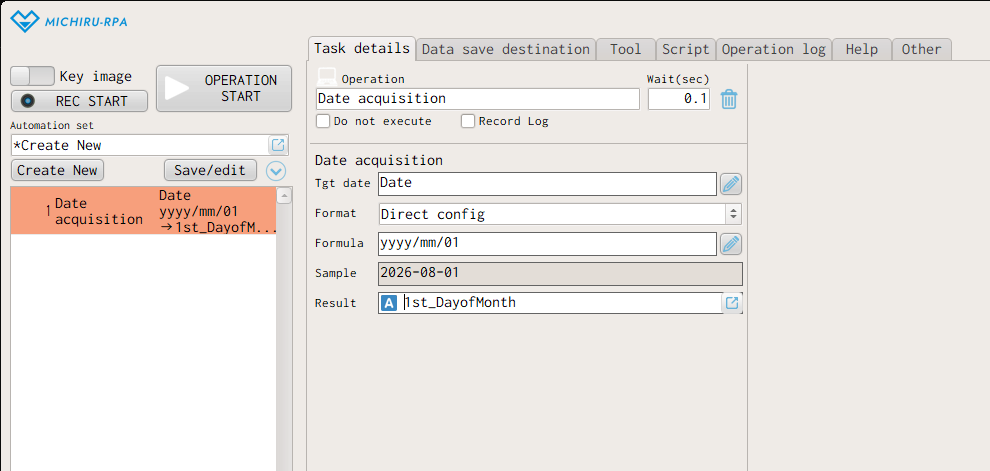
- Select “Function / Script” > “Date acquisition” from the the operation menu.
- Input “Date” in the “Tgt date” field.
- Select “Direct config” from the “Format” drop-down menu.
- Input “yyyy/mm/01” in the “Formula” field.
- Select the data destination to store the data by clicking the button at the end of the “Result” field.
The retrieved data will be stored in the “1st_DayofMonth” data save destination after the execution.
Getting the last day of a month
Since the last day of a month changes depending on the month, we will need slightly more complex formula to get the desired result.
- Last day of the current month
-
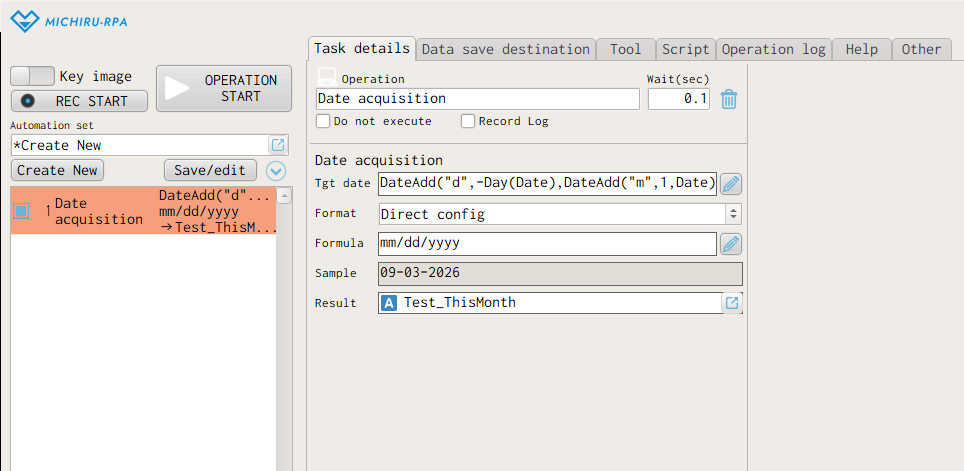
- Select “Function / Script” > “Date acquisition” from the the operation menu.
- Input “DateAdd(“d”,-Day(Date),DateAdd(“m”,1,Date))” in the “Tgt date” field.
- Select the date format you would like to use from the “Format” drop-down menu.
- Select the data destination to store the data by clicking the button at the end of the “Result” field.
The retrieved data will be stored in the “LastDay_CurrentMonth” data save destination after the execution.
- Last day of the previous month
-
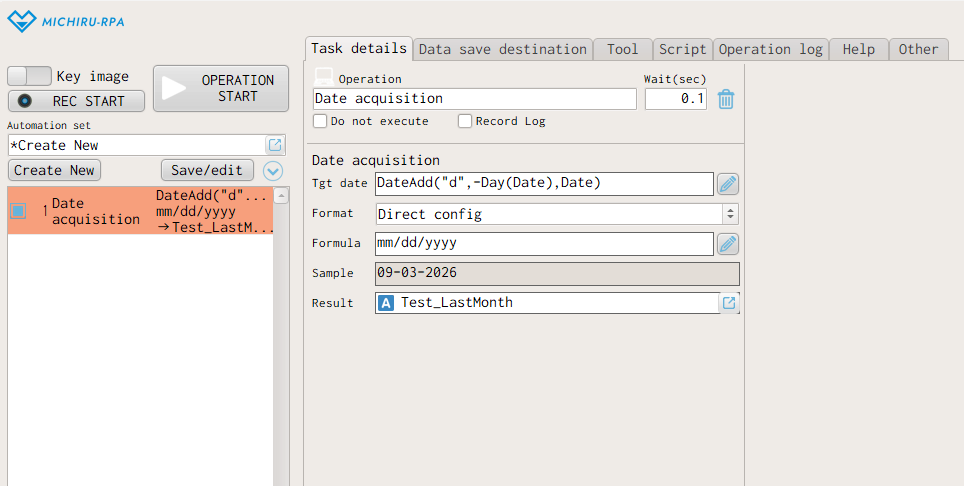
- Select “Function / Script” > “Date acquisition” from the the operation menu.
- Input “DateAdd(“d”,-Day(Date),Date)” in the “Tgt date” field.
- Select the date format you would like to use from the “Format” drop-down menu.
- Select the data destination to store the data by clicking the button at the end of the “Result” field.
The retrieved data will be stored in the “LastDay_CurrentMonth” data save destination after the execution.
- Last day of the following month
-
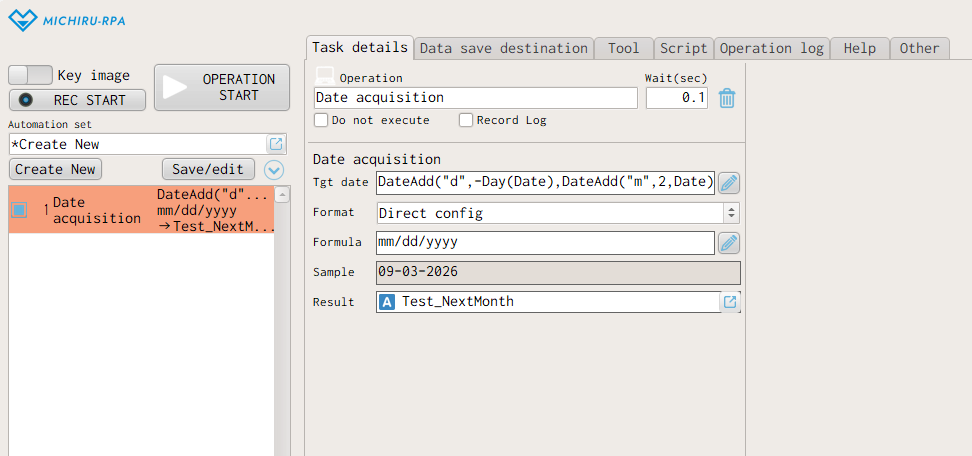
Start by getting the first day of the month after the following month.
- Select “Function / Script” > “Date acquisition” from the the operation menu.
- Input “DateAdd(“d”,-Day(Date),DateAdd(“m”,2,Date))” in the “Tgt date” field.
- Select the date format you would like to use from the “Format” drop-down menu.
- Select the data destination to store the data by clicking the button at the end of the “Result” field.
The retrieved data will be stored in the “LastDay_CurrentMonth” data save destination after the execution.
* If you would like to get the last day of other months not introduced here, you can make adjustment to the formula like the following.
| Target Date | Formula to use |
| Last day of the month 3 months prior | DateAdd(“d”,-Day(Date),DateAdd(“m”,-2,Date)) |
| Last day of the month 6 months from now | DateAdd(“d”,-Day(Date),DateAdd(“m”,7,Date)) |